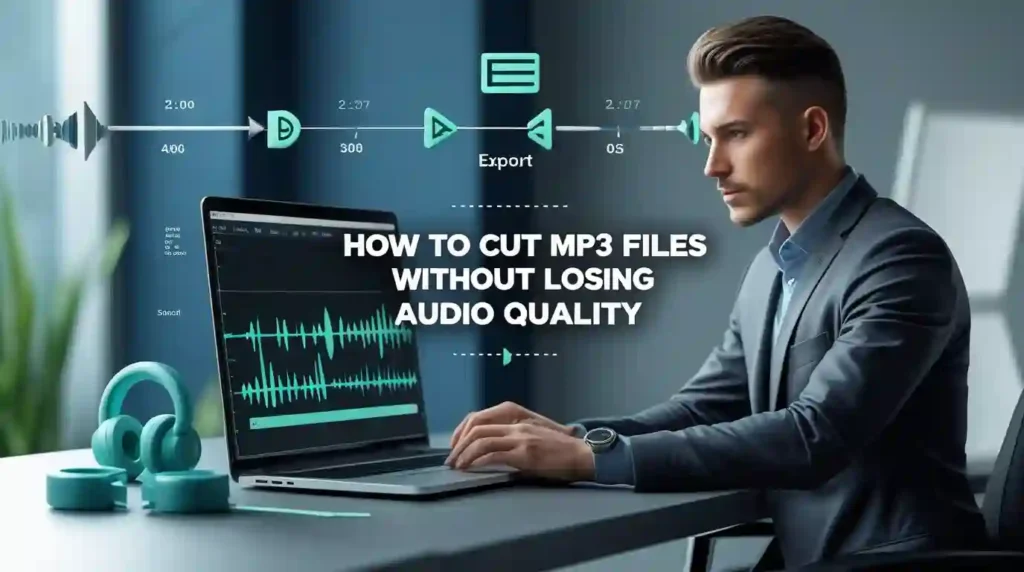
Ever tried trimming an MP3 file, only to find the audio sounds muffled or distorted afterward? You’re not alone. Many people struggle with maintaining audio quality when editing their music, podcasts, or voice recordings. The good news is that cutting MP3 files without losing quality is absolutely possible when you know the right approach.
In this guide, you’ll discover exactly how to trim, split, and edit MP3 files while preserving their original sound quality. Whether you’re creating ringtones, editing podcast episodes, or splitting audiobook chapters, these methods will help you achieve professional results without any quality degradation.
What Does “Cutting MP3 Without Losing Quality” Mean?
When we talk about cutting MP3 files without quality loss, we’re referring to non-destructive audio editing. This means removing unwanted portions of your audio file without re-encoding or compressing it further.
Think of it like cutting a piece of paper. You’re simply removing sections, not changing the paper’s texture or quality. The same principle applies to lossless MP3 editing—you’re trimming the file while keeping the original bitrate, sample rate, and audio codec intact.
Most standard audio editors compress your file every time you save it, which causes sound quality degradation. This process is called transcoding, and it’s the main culprit behind that muffled sound you might have experienced. The key to avoiding this is using tools that support stream copying, which removes sections without touching the actual audio data.
Why Audio Quality Matters When Cutting MP3 Files
Audio quality preservation isn’t just about sounding professional—it directly impacts how your content is received. Whether you’re trimming music tracks for a DJ mix or editing interview audio for a podcast, maintaining audio fidelity ensures your listeners enjoy the best possible experience.
Here’s what happens when quality is lost during editing:
- Reduced clarity: High frequencies disappear, making vocals sound muddy
- Loss of detail: Instruments blend together instead of standing out
- Increased noise: Compression artifacts create unwanted hissing sounds
- Metadata loss: ID3 tags containing artist information may be removed
Professional content creators understand that audio quality reflects their brand. A podcast with poor sound quality loses listeners quickly, while crisp, clear audio keeps them engaged. The same applies to music producers, voice-over artists, and anyone working with audio files.
Understanding MP3 Compression and Quality Loss
Before diving into cutting techniques, let’s understand how MP3 compression works. MP3 files use lossy compression, which means they already sacrifice some audio data to reduce file size. This is why a 5-minute song is only 5MB instead of 50MB.
The compression level is determined by the bitrate. Common bitrates include:
- 128 kbps: Lower quality, smaller file size
- 192 kbps: Medium quality, balanced size
- 320 kbps: High quality, larger file size
Each time you edit and re-save an MP3 using traditional methods, you’re compressing it again. This is called double compression, and it’s similar to making a photocopy of a photocopy—quality degrades with each generation.
The sample rate (typically 44.1kHz) and bit depth (usually 16-bit) also affect quality. When these settings change during editing, you’ll notice a difference in sound. That’s why maintaining these original parameters is crucial for quality preservation.
Best Methods to Cut MP3 Without Re-encoding
The secret to cutting MP3 files without quality loss is avoiding re-encoding altogether. Here are the most effective methods:
Stream Copying (Direct Stream Copy)
This technique copies the audio stream directly without decoding and re-encoding. Popular tools like MP3DirectCut and FFmpeg use this method. The software simply removes frames from the MP3 file while keeping the remaining data unchanged. Think of it as deleting pages from a book without rewriting the text.
Frame-Level Editing
MP3 files are divided into small chunks called frames. Tools that support frame-level editing can cut precisely between these frames without affecting the audio codec. This maintains constant bitrate (CBR) or variable bitrate (VBR) settings perfectly.
Lossless Audio Formats
For maximum quality control, convert your MP3 to a lossless format like WAV or FLAC, make your edits, then convert back to MP3 only once. While this adds an extra step, it ensures you’re only compressing the file one time.
Metadata Preservation
Good MP3 editors preserve ID3 tags, album art, and other metadata during the cutting process. This ensures your file information remains intact even after trimming.
Top Software for Lossless MP3 Editing
Let’s explore the best tools for cutting MP3 files while maintaining audio quality:
MP3DirectCut (Windows)
This free software is specifically designed for lossless MP3 editing. It works directly with the MP3 format without decoding, making it perfect for quick cuts, splits, and trimming. The interface shows the audio waveform, making it easy to select exact sections. MP3DirectCut supports both constant bitrate and variable bitrate files, and it’s incredibly lightweight.
Audacity (Cross-Platform)
While Audacity does re-encode by default, you can export using the same settings as your original file to minimize quality loss. Set the bitrate to match your source file (usually 320kbps for best quality), and choose constant or variable bitrate accordingly. Audacity offers advanced features like noise reduction and waveform editing, making it ideal for more complex editing tasks.
FFmpeg (Command-Line)
For tech-savvy users, FFmpeg provides the ultimate control. Using stream copying commands, you can cut MP3 files with zero quality loss. The command line approach might seem intimidating, but it offers precision that graphic interfaces can’t match. Plus, it’s perfect for batch processing multiple files.
Online MP3 Cutters
Several web-based tools now support lossless cutting. These audio trimmer online free options work directly in your browser without requiring software installation. However, always verify that the tool doesn’t automatically compress your file during processing. Look for options that specifically mention “no re-encoding” or “lossless cutting.”
Adobe Audition
Professional audio editors often choose Adobe Audition for its advanced capabilities. While it’s a paid option, it provides professional-grade audio quality preservation and supports multiple audio formats beyond MP3.
Step-by-Step Guide: Cutting MP3 Files (Various Tools)
Using MP3DirectCut:
- Download and install MP3DirectCut from the official website
- Open your MP3 file by clicking File > Open
- Use the waveform display to locate your cut points
- Mark the start point by pressing the beginning bracket key
- Mark the end point by pressing the ending bracket key
- Click the scissors icon to cut the selected section
- Save your file—MP3DirectCut automatically uses stream copying
Using Audacity:
- Import your MP3 file into Audacity
- Select the portion you want to keep using the selection tool
- Delete unwanted sections by pressing Delete or selecting Edit > Remove Audio
- Go to File > Export > Export as MP3
- Match your export settings to the original file’s bitrate
- Choose the same mode (CBR or VBR) as your source
Using Online Tools:
- Visit a trusted audio cutter online platform
- Upload your MP3 file or paste a URL
- Use the visual editor to select your desired segment
- Ensure the quality settings match your original file
- Download the trimmed MP3 without quality loss
Using FFmpeg (Command Line):
- Open your terminal or command prompt
- Navigate to the folder containing your MP3
- Use the command:
ffmpeg -i input.mp3 -ss 00:00:10 -to 00:02:30 -c copy output.mp3 - Replace timestamps with your desired start and end times
- The
-c copyflag ensures stream copying without re-encoding
Online vs Desktop MP3 Editors
Choosing between online and desktop tools depends on your specific needs and workflow.
Online MP3 Cutters offer convenience—no installation required, and they work on any device with a browser. They’re perfect for quick, one-time edits. However, they may have file size limitations, require internet connection, and some compress files during processing. Privacy can also be a concern when uploading audio to third-party servers.
Desktop Software provides more control and typically better quality preservation. Tools like MP3DirectCut and Audacity work offline, handle larger files easily, and offer advanced features like batch processing. They’re ideal for frequent editing tasks or professional work. The downside is you need to install software and updates.
For occasional users trimming podcast episodes or creating ringtones, online tools work fine. Professional audio editors, musicians, and content creators should invest in desktop software for consistent, high-quality results.
Common Mistakes That Cause Quality Loss
Avoid these pitfalls when cutting MP3 files:
Choosing the Wrong Bitrate: Exporting at a lower bitrate than your original file guarantees quality loss. Always match or exceed the source bitrate.
Multiple Edits and Saves: Each time you edit and save using traditional methods, you’re compressing the file again. Make all your edits in one session whenever possible.
Ignoring Sample Rate: Changing from 44.1kHz to 48kHz (or vice versa) during editing causes audio resampling, which degrades quality.
Using Generic Video Editors: Many video editing tools automatically compress audio when exporting. Stick to dedicated audio editors for MP3 cutting.
Not Using Stream Copying: If your tool doesn’t specifically mention stream copying or direct stream copy, it’s probably re-encoding your file.
Converting Formats Unnecessarily: Converting MP3 to another lossy format like AAC, then back to MP3, doubles the quality loss.
How to Verify Audio Quality After Cutting
After trimming your MP3, it’s important to verify the quality remains intact:
Check File Properties: Right-click your file and view properties. Compare the bitrate, sample rate, and audio codec with your original file. They should be identical.
Use Audio Analysis Tools: Programs like Spek or Adobe Audition can display frequency response graphs. Compare before and after versions—they should look nearly identical.
Listen Carefully: Play both versions using quality headphones. Focus on high frequencies like cymbals and vocals. Any muffling or distortion indicates quality loss.
Compare File Sizes: While not always accurate, a drastically smaller file size after editing suggests compression occurred.
Check Metadata: Ensure your ID3 tags, album art, and other information remain intact.
Professional audio editors often use spectrum analyzers to scientifically verify that frequency response remains unchanged. For most users, careful listening comparison is sufficient.
Who Can Use These MP3 Cutting Tools?
These audio editing techniques benefit various users:
Podcasters: Trim intro/outro segments, remove mistakes, and split long recordings into episodes without compromising audio fidelity.
Musicians and DJs: Create seamless loops, edit track lengths, and prepare music for performances while maintaining sound quality.
Students and Teachers: Edit lecture recordings, trim educational audio content, and create study materials from longer recordings.
Content Creators: Prepare audio for YouTube videos, social media posts, and online courses without quality degradation.
Voice-Over Artists: Clean up recordings, remove unwanted sections, and deliver professional audio to clients.
Audiobook Enthusiasts: Split large audiobook files into manageable chapters for easier listening.
Why Choose Toolify Worlds for Your Audio Editing Needs?
When you need reliable tools for cutting MP3 files without losing quality, Toolify Worlds offers several advantages:
All-in-One Platform: Access over 100 productivity tools in one convenient location, including audio trimmers, format converters, and media editors.
Privacy-Focused: Your audio files are processed securely without storing data on servers, ensuring complete privacy for your creative work.
No Sign-Up Required: Start editing immediately without creating accounts or sharing personal information.
Cross-Device Compatibility: Whether you’re on Windows, Mac, Android, or iOS, Toolify Worlds works seamlessly across all platforms.
Regular Updates: The platform constantly adds new features and tools based on user feedback, keeping you at the cutting edge of audio editing technology.
Free Access: Enjoy professional-grade audio editing capabilities without subscription fees or hidden costs.
Frequently Asked Questions
Can you cut an MP3 without losing quality?
Yes, you can cut MP3 files without losing quality by using tools that support stream copying or direct copy methods. These tools remove sections without re-encoding the audio data, preserving the original bitrate and sound quality perfectly.
What is the best free software to cut MP3 without quality loss?
MP3DirectCut is the best free option for Windows users, as it’s specifically designed for lossless MP3 editing. For cross-platform needs, Audacity works well when you match export settings to your original file’s specifications.
Can I cut MP3 files online without quality loss?
Yes, several online audio cutters support lossless editing. However, ensure the tool explicitly states it doesn’t re-encode files. Look for options mentioning “stream copy” or “no quality loss” in their features.
What’s the difference between cutting and re-encoding?
Cutting simply removes frames from your MP3 file without changing the remaining audio data. Re-encoding decodes the entire file and compresses it again, which causes quality degradation with each save.
How do I maintain the original bitrate when editing MP3?
Use tools that support stream copying, or manually set your export bitrate to match your source file. Check your original file’s properties first, then ensure your editor uses the same bitrate setting when saving.
Does Audacity compress MP3 files automatically?
Audacity re-encodes by default when exporting. To minimize quality loss, set the export bitrate to match your original file (typically 320kbps for best quality) and choose constant bitrate mode if your source uses CBR.
What is stream copying in audio editing?
Stream copying is a technique where the audio stream is copied directly without decoding and re-encoding. This preserves the exact audio quality of your original file, making it the best method for lossless MP3 editing.
Can I cut MP3 on my phone without losing quality?
Yes, several mobile apps support quality-preserving MP3 cutting. Look for apps specifically mentioning lossless editing or no re-encoding in their descriptions. Many online audio trimmers also work well in mobile browsers.
Cutting MP3 files without losing audio quality isn’t complicated once you understand the fundamentals. By using the right tools and avoiding re-encoding, you can edit your audio files professionally while maintaining perfect sound quality. Whether you choose desktop software like MP3DirectCut or convenient online tools, the key is ensuring your chosen method preserves the original bitrate and sample rate.
Start with simple cuts using stream copying tools, and gradually explore advanced features as you become comfortable. Your listeners will appreciate the crystal-clear audio quality in your podcasts, music, and recordings.
Ready to start cutting MP3 files with perfect quality? Visit Toolify Worlds to access free, professional-grade audio editing tools that preserve every detail of your sound.