Need to edit a PDF document but don’t have the right tools? Converting PDF files to Word format is one of the most common tasks for students, professionals, and businesses today. Whether you’re working on a contract, updating a resume, or editing an academic paper, having access to a reliable PDF to Word converter can save you hours of retyping and frustration.
In this guide, you’ll discover how to transform any PDF into an editable Word document in seconds—completely free, with no software downloads or email registration required. Let’s explore the easiest way to make your PDFs editable.
What is a PDF to Word Converter?
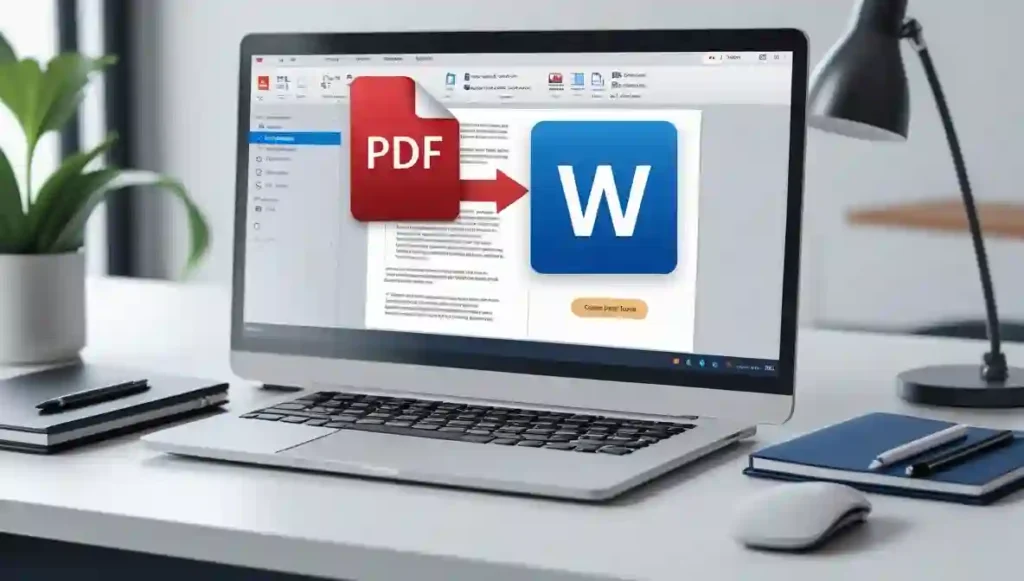
A PDF to Word converter is an online tool that transforms static PDF documents into fully editable Microsoft Word files. This conversion process extracts text, images, tables, and formatting from your PDF and recreates them in a .docx or .doc format that you can modify using Word or any compatible document editor.
The beauty of modern converters lies in their simplicity. You don’t need Adobe Acrobat or expensive software anymore. With cloud-based technology, you can convert PDF to Word right in your browser, maintaining the original layout and preserving important elements like headers, footers, and bullet points.
This tool is especially valuable when you receive documents in PDF format but need to make changes. Instead of starting from scratch, you simply convert the file and edit whatever you need—whether that’s updating contact information, changing dates, or adding new sections.
How Does PDF to DOCX Conversion Work?
When you upload a PDF file to an online converter, the tool analyzes the document structure and identifies different elements like text blocks, images, tables, and graphics. Advanced converters use OCR (Optical Character Recognition) technology to handle scanned PDFs, converting image-based text into actual editable characters.
The conversion process typically takes just a few seconds for standard documents. Larger files with complex formatting might take a bit longer, but most modern tools can handle files up to 100MB or more without issues.
What makes Toolify Worlds different is the attention to detail during conversion. The tool works hard to preserve your original formatting, keeping paragraph spacing, font styles, and image placement as close to the source as possible. This means less cleanup work for you after conversion.
How to Use Our PDF to Word Converter (Step-by-Step)
Converting your PDF files couldn’t be easier. Follow these simple steps to transform your documents:
Step 1: Upload Your PDF File Click the upload button or drag and drop your PDF directly into the conversion area. The tool accepts files from your computer, cloud storage, or even mobile device.
Step 2: Start the Conversion Once uploaded, click the “Convert to Word” button. The tool immediately begins processing your file, analyzing the structure and preparing it for Word format.
Step 3: Download Your Editable Word Document Within seconds, your converted file is ready. Click the download button to save your new .docx file to your device. You can now open it in Microsoft Word, Google Docs, or any compatible word processor.
Step 4: Edit and Customize Open your newly converted document and make any changes you need. The text is fully editable, images can be moved or replaced, and you have complete control over the formatting.
Step 5: Save or Share After editing, save your document in your preferred format—whether that’s keeping it as a Word file or converting it back to PDF for sharing.
The entire process takes less than a minute for most documents, making it perfect for quick edits or urgent deadline work.
Key Features That Make This Converter Stand Out
No Email Registration Required Unlike many online tools, you don’t need to create an account or provide your email address. Simply upload, convert, and download—it’s that straightforward.
Free and Unlimited Conversions Convert as many PDF files as you need without hitting any limits or being asked to upgrade to a paid plan. This is genuinely free document conversion with no hidden costs.
Maintains Original Formatting The converter preserves your document’s layout, including fonts, colors, spacing, and alignment. Tables and images stay where they should, reducing the need for manual reformatting.
OCR Technology for Scanned PDFs Even if your PDF is a scanned image or photo of a document, the OCR feature can extract the text and make it editable. This is perfect for converting old contracts, receipts, or printed materials.
Secure and Private Processing Your files are processed securely and automatically deleted from servers after conversion. Toolify Worlds prioritizes user privacy and never stores your documents permanently.
Fast Conversion Speed Most documents convert in under 10 seconds. Even larger files with multiple pages are processed quickly, so you’re never left waiting.
Works on Any Device Whether you’re on Windows, Mac, Android, or iOS, the converter works seamlessly in your browser. No app installation needed.
Why Choose ToolifyWorlds for PDF Conversion?
Toolify Worlds isn’t just another converter website—it’s a comprehensive platform designed for modern users who need reliable, fast, and secure document tools.
Access 100+ Tools in One Place Beyond PDF to Word conversion, you’ll find dozens of other useful tools for text formatting, image editing, code generation, and data processing. Everything you need is right here.
Built for Speed and Performance The platform is optimized for quick results. You won’t experience lag or slow loading times, even during peak usage hours.
Regular Updates and Improvements The tool is continuously improved based on user feedback and technological advances. New features are added regularly to enhance your experience.
Mobile-Friendly Design Convert documents on the go using your smartphone or tablet. The responsive design works perfectly on smaller screens without sacrificing functionality.
No Watermarks or Limitations Your converted documents are clean and professional, with no branded watermarks or quality restrictions. What you upload is what you get—just in a different format.
Who Can Benefit from This PDF to Word Converter?
Students and Researchers Convert academic papers, research articles, and study materials into editable formats for note-taking, citation management, or collaborative editing. Perfect for thesis work and group projects.
Business Professionals Edit contracts, proposals, invoices, and reports quickly without requesting original files from colleagues. Make last-minute changes before important meetings or presentations.
Freelancers and Remote Workers Handle client documents efficiently, whether you need to update project briefs, modify agreements, or prepare presentations from PDF sources.
Teachers and Educators Convert educational materials, worksheets, and lesson plans into formats that can be customized for different classes or student needs.
Legal Professionals Work with legal documents, agreements, and court filings that often come in PDF format but need modifications or annotations.
Job Seekers Update your resume or cover letter quickly when you only have a PDF version saved. Tailor your application materials for different positions without starting from scratch.
Tips for Best Conversion Results
Use High-Quality Source PDFs The better your original PDF quality, the cleaner your Word conversion will be. Avoid converting low-resolution scanned documents when possible.
Check Formatting After Conversion While the tool maintains most formatting, complex documents might need minor adjustments. Take a minute to review spacing and alignment.
Keep File Sizes Reasonable Although the converter handles large files, documents under 50MB typically convert faster and with fewer potential issues.
Convert One Page for Testing If you’re working with a lengthy document, try converting just the first page initially to ensure the results meet your expectations.
Save Backups Always keep your original PDF file. That way, if you need to make additional conversions or try different settings, you have the source ready.
Common Questions About PDF to Word Conversion
Can I Convert Password-Protected PDFs? You’ll need to remove password protection before conversion. If you have the password, open the PDF, remove security settings, then convert the file.
What Happens to Images and Graphics? Images are extracted and placed in your Word document, maintaining their position relative to text. You can resize, move, or delete them just like any Word image.
Will Hyperlinks Still Work? Most hyperlinks are preserved during conversion, though some complex linking might require manual checking and fixing if needed.
How Accurate is the Conversion? For standard text documents, accuracy is typically 95-99%. Complex layouts with unusual fonts or intricate graphics might require minor touch-ups.
Can I Convert Multiple Files at Once? Currently, the tool processes one file at a time, but you can convert multiple documents consecutively without any waiting periods between conversions.
Understanding PDF and Word Formats
PDF (Portable Document Format) was designed to present documents consistently across different devices and platforms. It’s excellent for sharing finalized documents but challenging to edit without specialized software.
Word documents (.docx or .doc) are built for editing and collaboration. They’re the standard for document creation, allowing easy modifications, comments, and track changes features.
Converting between these formats gives you the best of both worlds—the security and consistency of PDF when sharing, and the flexibility of Word when editing.
Troubleshooting Common Conversion Issues
Text Appears Jumbled or Out of Order This sometimes happens with PDFs created from scans or images. Try using a different PDF or ensure the original document wasn’t corrupted.
Missing Fonts After Conversion If your converted document shows different fonts, the original PDF might have used custom or embedded fonts. You can easily change fonts in Word to match your needs.
Tables Don’t Look Right Complex tables occasionally lose structure during conversion. You might need to manually adjust borders and cell spacing in Word.
File Won’t Upload Check that your file is actually a PDF and not corrupted. Also verify the file size is within acceptable limits (usually up to 100-200MB).
Conversion Takes Too Long Very large files or documents with many high-resolution images take longer. Be patient, or try splitting the PDF into smaller sections.
Privacy and Security Considerations
When converting sensitive documents online, security matters. Toolify Worlds uses encrypted connections (HTTPS) to protect your files during upload and download. The platform automatically deletes converted files from servers within hours, ensuring your data doesn’t linger unnecessarily.
For highly confidential documents, consider using offline conversion software or your organization’s approved tools. However, for general business and personal documents, online converters provide a convenient and sufficiently secure solution.
Alternative Uses for PDF to Word Conversion
Content Extraction Pull text from PDF ebooks, research papers, or articles for quotes, citations, or reference materials in your own writing.
Template Creation Convert PDF forms or templates to Word format, then customize them for your specific needs or branding.
Archiving and Organization Convert old PDF documents to Word for easier searching, indexing, and management within document management systems.
Collaboration Transform PDFs into Word documents that multiple team members can edit simultaneously using cloud collaboration tools.
Translation Projects Extract text for easier translation work, as most translation tools work better with editable text formats than PDFs.
Making the Most of Your Converted Documents
Once you’ve converted your PDF to Word, take advantage of Word’s powerful editing features. Use track changes to show modifications, add comments for feedback, or apply styles for consistent formatting throughout the document.
Consider creating templates from frequently converted documents to streamline future work. If you regularly work with similar PDFs, having a pre-formatted Word template saves time on formatting adjustments.
Remember that Word documents are more collaborative than PDFs. Share your converted files with colleagues using cloud storage or email, and take advantage of real-time editing features in Microsoft 365 or Google Docs.
The Future of Document Conversion
As technology advances, PDF to Word converters are becoming increasingly sophisticated. AI-powered tools now better understand document structure, making conversions more accurate than ever before.
Future developments will likely include better handling of complex graphics, enhanced OCR for multiple languages, and improved preservation of interactive elements like forms and buttons.
Frequently Asked Questions
Is this PDF to Word converter really free? Yes, absolutely. You can convert unlimited PDF files to Word format without any charges, subscriptions, or hidden fees. No credit card required.
Do I need to install any software? No installation necessary. The converter works entirely in your web browser, whether you’re on a computer, tablet, or smartphone. Just visit the website and start converting.
How long does the conversion take? Most PDF files convert in 5-15 seconds. Larger documents with many pages or images might take up to a minute, but you’ll see a progress indicator during processing.
Is my data safe when using this tool? Your privacy is protected. Files are processed securely and automatically deleted from servers shortly after conversion. The platform doesn’t store or share your documents.
Can I convert scanned PDFs to editable Word documents? Yes, the tool includes OCR technology that recognizes text in scanned PDFs and converts it to editable text in Word format. This works with most printed documents and images.
What file size limits apply? The converter handles files up to 100MB without issues. Most standard documents are well below this limit, but extremely large presentations or image-heavy PDFs might exceed it.
Will the formatting stay the same after conversion? The tool preserves most formatting including fonts, colors, spacing, tables, and images. Some minor adjustments might be needed for very complex layouts, but 95% of documents convert perfectly.
Can I use this converter on my phone? Definitely. The tool works on all modern smartphones and tablets. Just open your mobile browser, upload your PDF, and download the converted Word document.
Do I need Microsoft Word to open converted files? Not necessarily. While Microsoft Word is ideal, you can also open .docx files with free alternatives like Google Docs, LibreOffice, or Apple Pages.
What if my converted document has errors? Most conversions are highly accurate, but if you notice issues, you can easily edit the Word document to fix any formatting or text problems. The file is fully editable after conversion.
Get Started with Free PDF to Word Conversion
Ready to transform your PDF documents into editable Word files? Toolify Worlds makes the process simple, fast, and completely free. No more retyping entire documents or struggling with expensive software.
Whether you’re a student working on assignments, a professional handling business documents, or anyone who needs to edit PDFs regularly, this converter saves you time and frustration. The intuitive interface means you’ll be converting files in seconds, and the high-quality results mean you’ll spend less time fixing formatting issues.
Visit Toolify Worlds today and experience the easiest way to convert PDF to Word online. Join thousands of users who trust this platform for their daily document conversion needs. Your next editable document is just one click away.